
Everyone
The idea
An assessment is a coach's honest snapshot of a player, skill by skill, on a five-step scale: Needs Support · Developing · Competent · Strong · Excellent. Coaches see the numbers 1–5 behind those words; players and families only ever see the words and dots.
- An assessment is of the player, not of an evening. It is a Player development review — the broader look at how someone is doing, never a verdict on one session or fixture.
- The club shapes what is asked. The sheet carries the criteria worth observing at that age stage — never the whole skill catalogue.
- Blank means “not observed”. A coach never has to score everything; a blank is skipped, never counted as a zero.
- Nothing is overwritten. Every assessment is a new record. Improvement is the difference between honest snapshots.
What makes ClubHub ClubHub is what happens after the scores: the coach chooses a focus, the coaching aims at it, and later evidence shows whether it moved.
Coach
What a coach reviews
There is one kind of assessment: a Player development review. ClubHub used to ask what are you reviewing? first and file the round against a session or a fixture. It no longer does — a development review is a judgement about a player built from everything a coach has seen, and pinning it to one Tuesday made it read like a mark out of ten for that Tuesday.
- The squad — from the team's page, Assess. One sheet, every player, one save.
- One player — from their own page, Assess player. The same criteria, one row.
Sessions and matches still carry their own records — the register, the plan, the result, a player's own reflection on how it went. Those describe the occasion. The review describes the player.
Owner · Admin · Director
Club office: shape the criteria
Open Templates. A template names what coaches pay attention to, per development stage — Foundation U6–U9, Developing U10–U12, Youth U13–U16, Performance U17–U18.
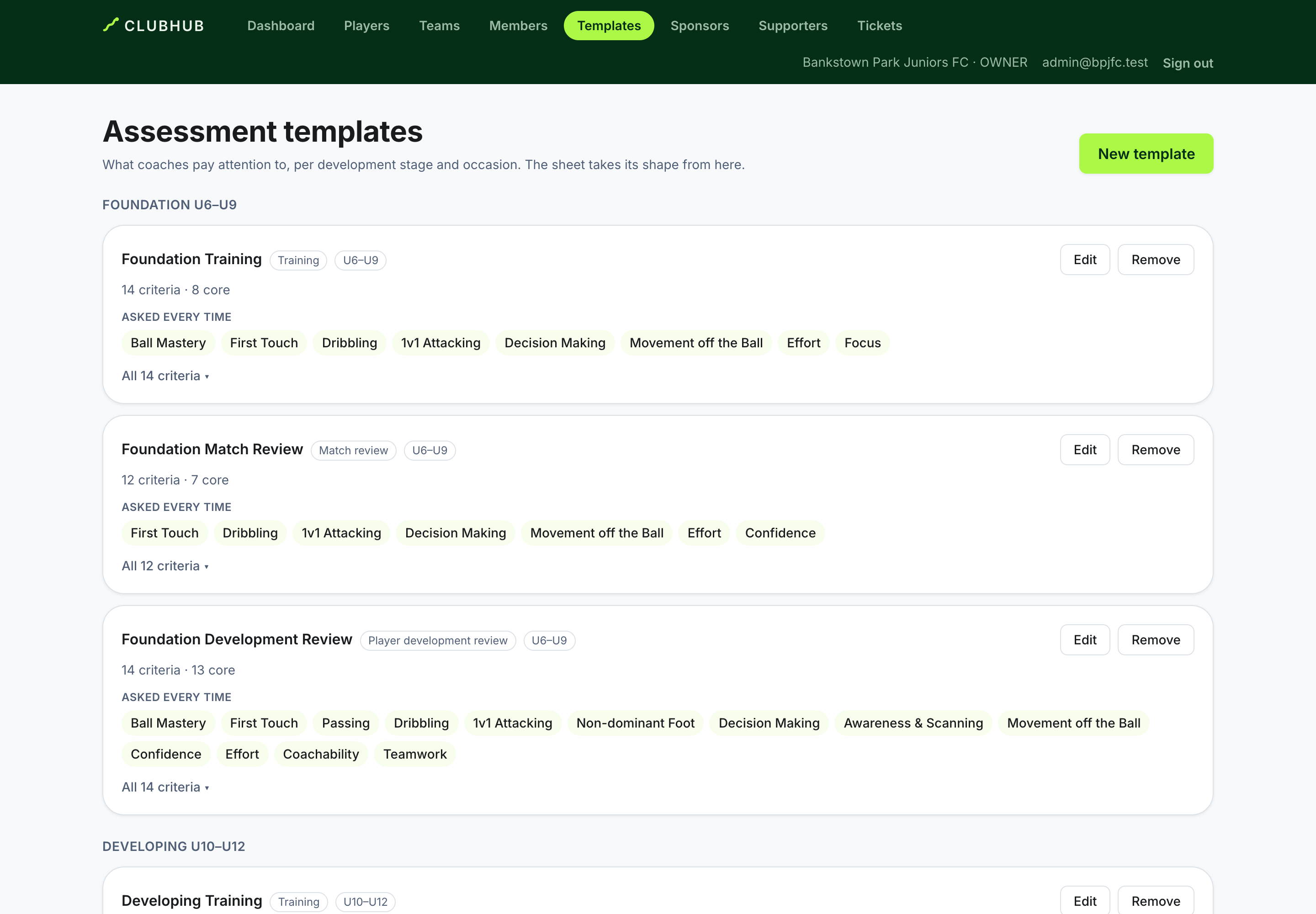
The skill catalogue is the club's vocabulary; a template is the criteria worth observing at that stage — no template mirrors the whole catalogue. The editor walks the decision the way the office thinks it: stage, criteria, core, position, then a Coach preview of exactly what a coach will see.
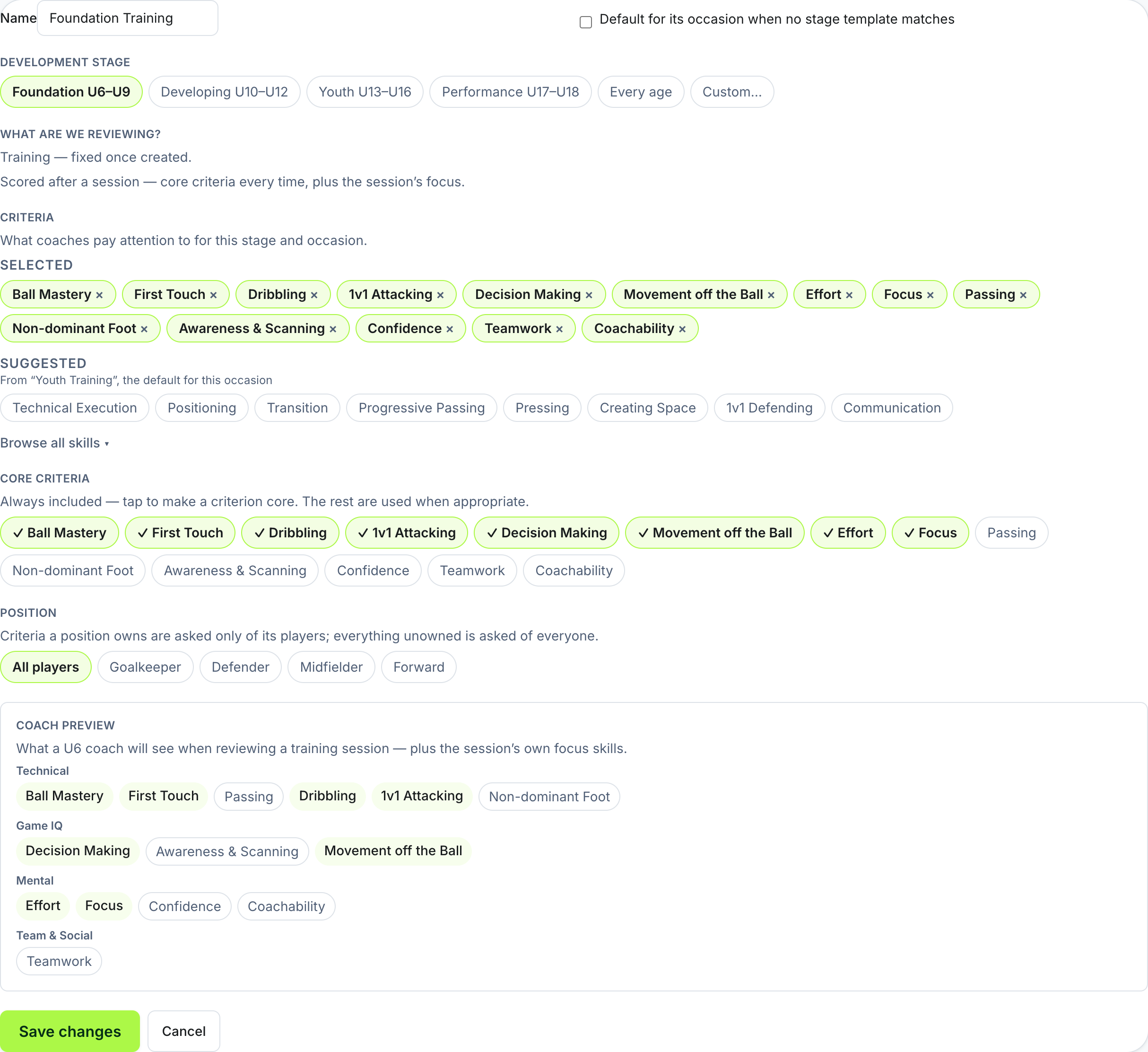
Removing a template is soft — rounds already recorded with it keep its name. Coaches work with what the club shaped; they never edit templates.
Coach
Coach: record the evidence
The sheet arrives already shaped: the resolved criteria for the stage, with each player's last scores beside each skill. Work One at a time or see the Whole team.
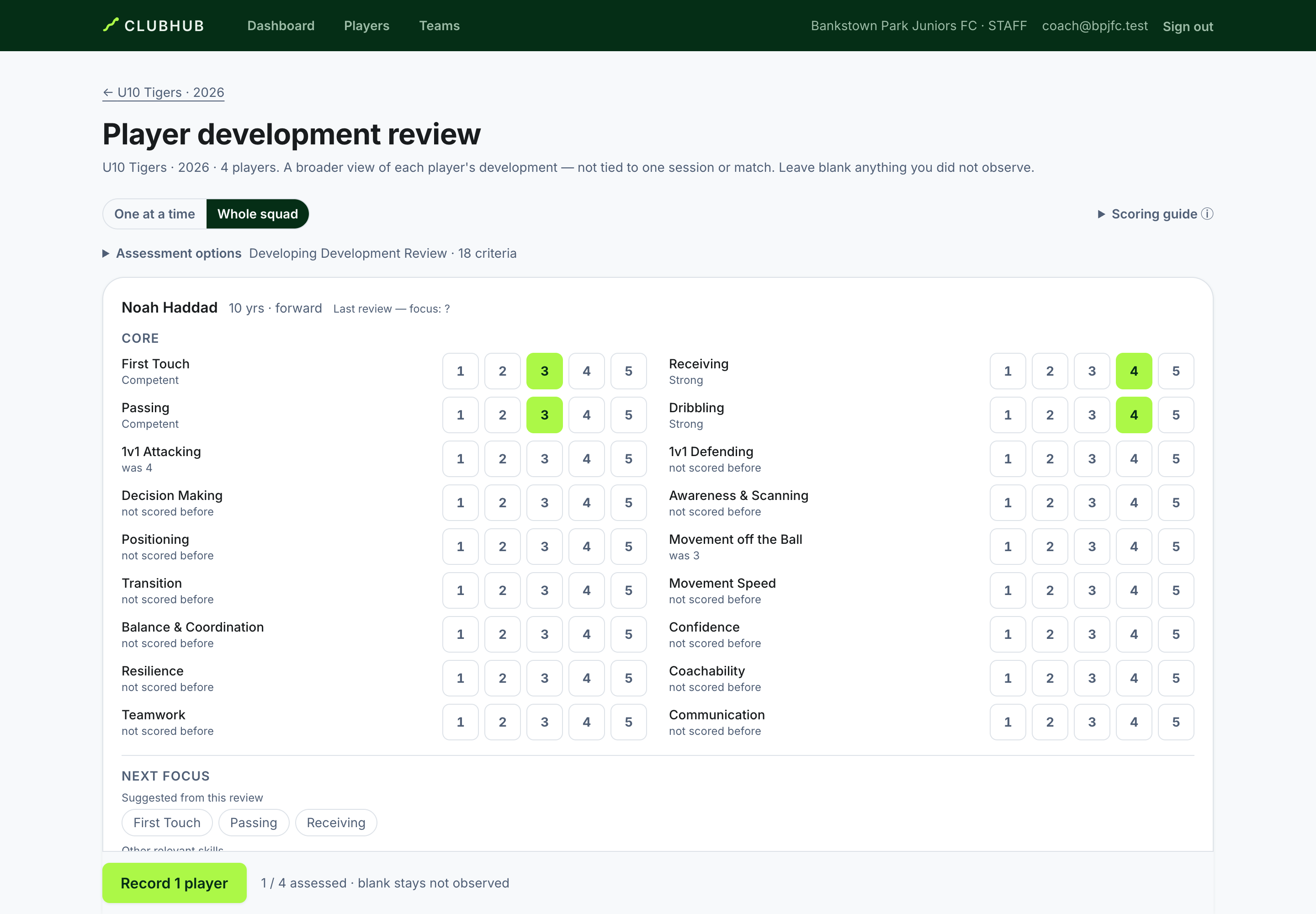
- Score whole levels, 1 Needs Support to 5 Excellent. Tap again to clear.
- Optionally add a Strength highlight and a one-line note — the words the family will read.
- One save records the round for everyone — it all lands or none of it does, and it never overwrites an earlier assessment.
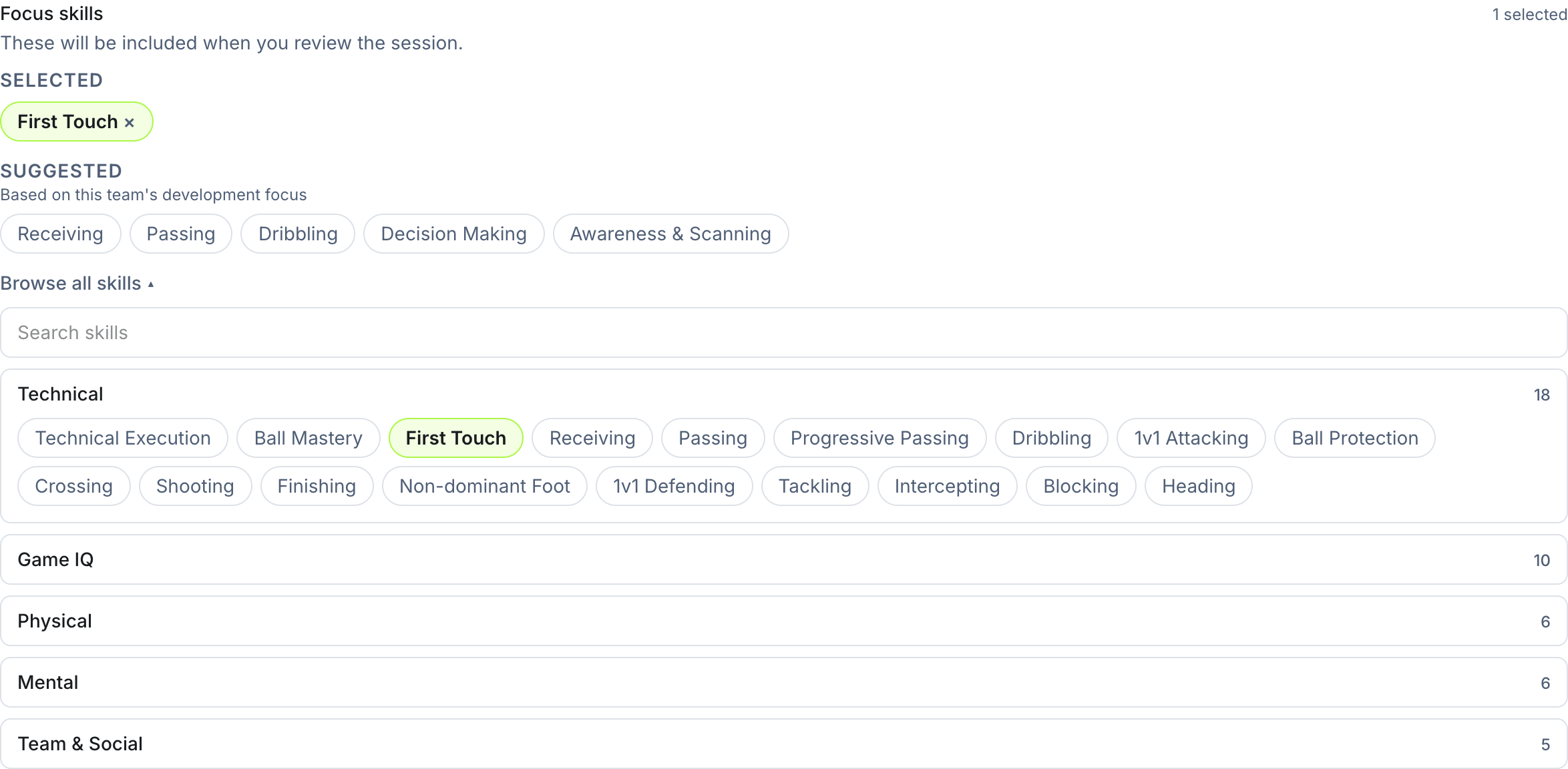
When creating a training session, the Focus skills picker works the same deliberate way: what's selected, what ClubHub suggests from the team's development focus, and the full catalogue behind Browse all skills.
Coach
Next focus: the coach decides
Under each player sits the one decision that drives everything after: Next focus — what this player works on next.

- ClubHub suggests from this review's own evidence; the coach chooses.
- A low score never becomes the focus by itself — coach judgement outranks arithmetic.
- Blank is a valid answer; the standing focus simply carries on.
Coach · Player · Parent
After the assessment
The chosen focus becomes the player's Current focus — what the coaching aims at until the next review.
- After training or a match, the player says how it went — their side of the story, read by the coach beside their own notes.
- The coach observes, writes notes with an explicit audience (Staff only or Share with family), and reassesses when there is something real to review.
Later evidence shows whether the focus is improving — progress is accumulated evidence, never an overwritten score. Newer evidence counts more strongly in the current picture; the history stays.
Everyone
Matches are context, not scores
Minutes, goals, assists and the coach's match performance live with the match, and Match form summarises the last 90 days — but a match performance describes that match only; it never changes a skill level. Development levels move on assessment evidence alone. The two sit side by side so the picture stays honest.
Player · Parent · Guardian
What players and parents see
A family sees the picture, not the paperwork: the Current focus in the coach's own words, strengths, what's improving, and the notes the coach chose to share. Levels are always words and dots — Developing, Competent, Strong — never marks out of five.
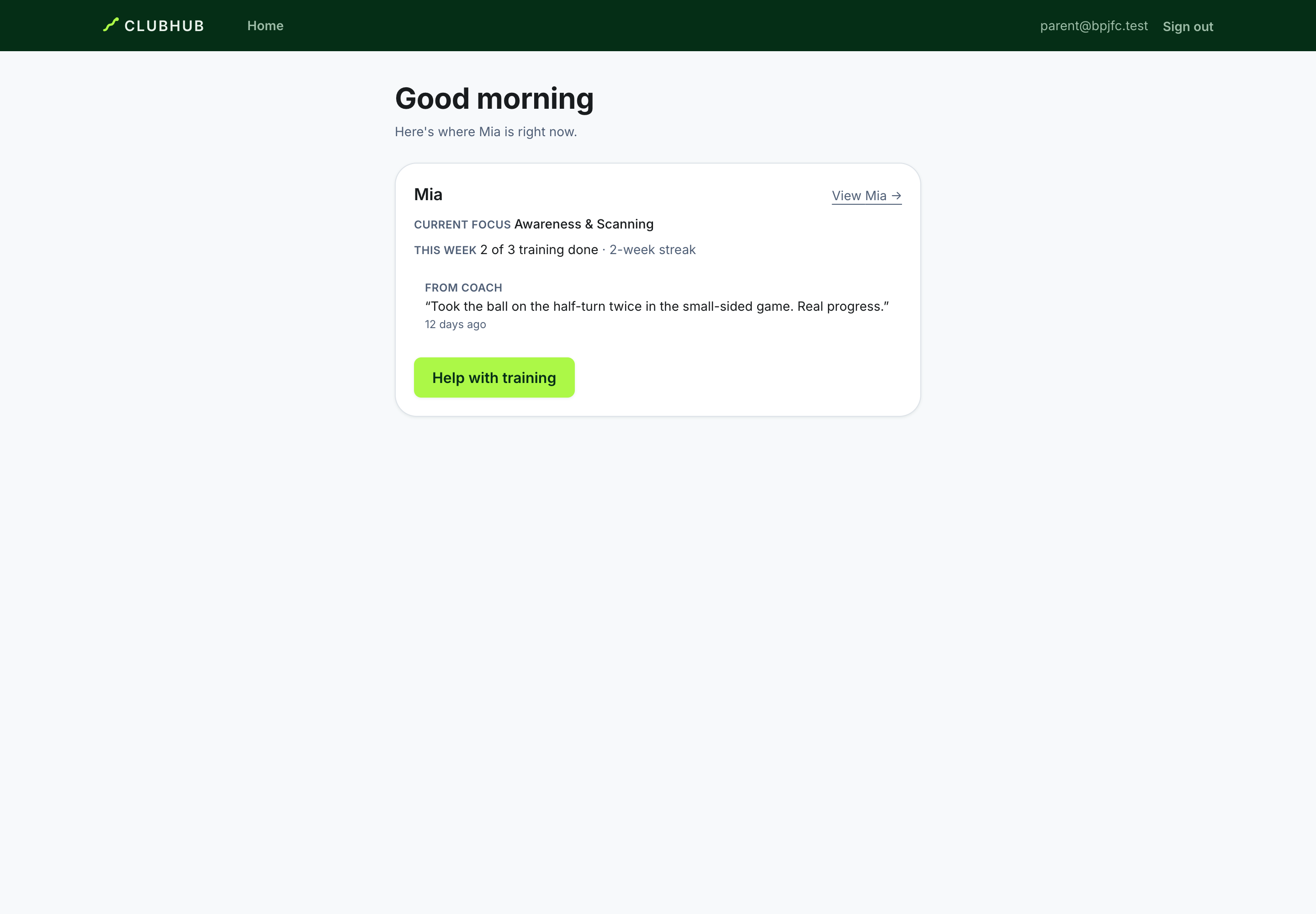
The player's own page keeps it simple: know my focus, say how it went, see myself getting better.
Everyone
Who sees what
- Owner / Admin / Director — shape templates; read and record assessments across the club.
- Coaches — record and read assessments for their own teams only.
- Parents & players — their own child / themselves: words and dots, the coach's shared picks and notes, and their own reflections. Never raw sheets, never staff-only notes, never teammates.
- Sponsors and supporters — counts and the club's public face; nothing about any child, ever.
These boundaries are enforced by the server, not hidden by the screen. The detail per seat lives in the coach, parent and player guides, with every word defined in the glossary.